

Project 030 - Cookie Protection - A Windows Kernel Driver That Blocks Cookie Theft
- Details
- Published: Saturday, 07 November 2026
- Hits: 479
Cookie File & Browser Login Protection
Stops infostealer malware stealing your browser login & cookie files, for Windows 10 & 11 - App by Ian Johnston Engineering Limited.
 Infostealer malware doesn't need your passwords. It copies out your browser's cookie and login files and uses the session cookies inside them to log straight into your accounts, bypassing your password and two-factor authentication completely.
This is exactly how many YouTube channels, email and social media accounts get hijacked, often after a fake “I’m not a robot” CAPTCHA tricks someone into pasting a command into Windows (known as ClickFix), or after opening or running a malicious download or email attachment.
Cookie Protection stops that. It uses a Windows kernel file-system minifilter driver that only lets genuine browsers open their own cookie and login files.
Any other program that tries, malware included, is blocked and the attempt is logged.
Because the driver runs inside the Windows kernel, it sees every attempt to open those files, whichever method a program uses. Unlike normal file permissions, it works even against malware running under your own user account.
Cookie Protection is strictly for non-commercial, non-business use only, please see the Licence & Usage statement at the foot of this page.
The driver is not yet signed by Microsoft. Until I have a code-signing certificate the app is NOT YET available.
DISCUSS:
Questions, suggestions and bug reports are welcome, please contact me, or you can discuss here on the EEVBlog forum.
YouTube Video:
See my YouTube channel for an introduction video of the app whilst I was still in development - here.
HOW IT WORKS:
Cookie Protection has two parts:
- The driver - a small kernel minifilter that watches every attempt to open the browsers' sensitive files (Chromium browsers: Cookies, Login Data, Local State and Web Data. Firefox: cookies.sqlite, logins.json and key4.db). If the program opening them isn't a genuine browser, the open is refused.
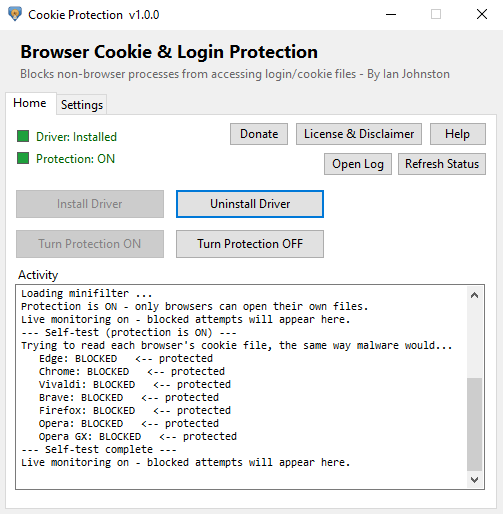
- The app - A GUI that installs and uninstalls the driver, enables and disables protection, shows blocked attempts live in its Activity box, records where each real attempt came from, and lets you test that each browser is protected.
FEATURES:
- Blocks non-browser programs from reading browser cookie, login and encryption-key files - Chrome, Edge, Brave, Vivaldi, Opera / Opera GX and Firefox.
- Full-path browser allow-list - renamed or copied fake browsers are blocked too.
- New browsers are picked up automatically - install one while protection is on and it's added to the list of genuine browsers within about 30 seconds (the app must be open).
- Blocks browsers started in headless or remote-debugging mode, a common way for malware to pull cookies out through the browser itself.
- Blocks copying the files from another computer through a network share.
- Live Activity box showing every blocked attempt in plain words - which program, and what it tried to read, e.g. "⚠ BLOCKED: powershell.exe → Chrome cookies". Repeated lines are shown once with a count, e.g. "(x39)".
- Normal activity is labelled as such, not as an attack - Opera's, Vivaldi's and Brave's own helper programs, Windows' SysMain service and Microsoft Defender show as "ℹ Normal". SysMain and Defender are checked against the real Windows service, so a fake copy still shows as BLOCKED.
- Origin details for every real attack, written to log.txt - the program's full path and command line, when it started and as which user, which program started it, its digital signature, a SHA-256 fingerprint with a VirusTotal link, and the website it was downloaded from (if Windows kept a record).
- Tray icon with pop-up notifications when something real is blocked. The tray icon and taskbar button show a coloured status dot.
- Everything is also written to log.txt in the app's folder, with date and time.
- Status check at start-up, and a check after Uninstall Driver that confirms the driver has really gone.
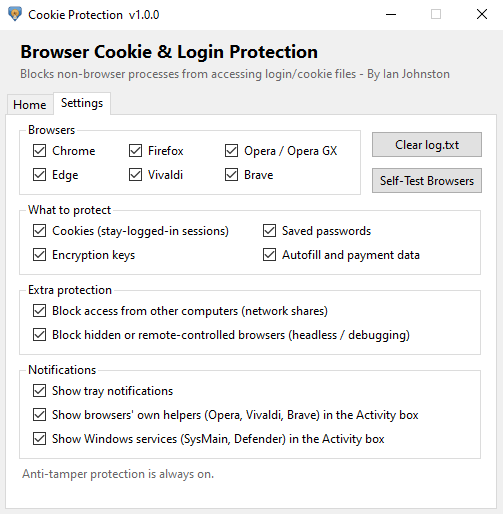
- SETTINGS tab - enable/disable protection per browser and per type of file, the network-share and headless checks, tray notifications, and what is shown in the Activity box. Your settings are kept if you reinstall the driver.
- SELF-TEST BROWSERS (on the Settings tab) - tries to read each browser's cookie file and reports BLOCKED or READABLE.
- Tamper resistance - while the driver is running, its settings in the registry can't be changed or deleted, and it can't be unloaded except through the app. An attempt to unload it is blocked and logged.
- Installed in C:\Program Files (x86)\IanJ\Cookie Protection - a folder only administrators can change. As the app runs with administrator rights, this stops malware from swapping the app for a fake or planting a DLL next to it for the app to load. If the app is ever run from a folder anyone can write to, it warns you.
- Built-in Help and Licence, plus Donate.
OS TESTED:
- Win10
- Win11
64-bit Windows 10 and 11 only (x64 PCs). Windows 7 and 8.1 are not supported because the kernel driver is signed through Microsoft’s attestation signing service, and Windows 10 and later are the only versions that accept drivers signed this way. ARM-based Windows PCs are not supported, as the driver is built for x64 processors only.
DOWNLOADS:
Coming soon on my Github, a downloadable zip (.msi installer). It's not available YET until I get the MS signing cert.
I also have a non-destructive script available which users can use to test the protection (Demo-StealTest.bat), please contact me, it's not in the download as your AV may block it.
This app may be used and shared freely for personal, non-commercial purposes only. Business or commercial use requires permission, so please contact me or send me a PM if you wish to use it within your business.
Please only download it from this website or my GitHub page, so you know you have the genuine, signed version.
There will be ways to check that your copy is genuine. The app and installer will be digitally signed with my code signing certificate, the kernel driver will be signed by Microsoft, and SHA-256 checksums of each release will be published here and on GitHub.
[all files scanned with BitDefender Antivirus prior to upload]
SOURCE CODE:
As much as I would like to, especially for peer review, the source code (Visual Studio 2022 solution with the C# app and the C driver) will probably never be made public.
It is being held back because publishing exactly how the driver recognises genuine browsers and how it all works would help malware authors work around it. This outweighs the benefits of having it released.
THE TECHNICAL SIDE:
How the driver and app work, how it's been tested, and what it doesn't stop.
Click here for the technical details
What it blocks
- The driver is a file-system minifilter (FltMgr, FSFilter Activity Monitor load order group, altitude 370000). Info here.
- It registers a pre-operation callback on IRP_MJ_CREATE, so it sees every attempt to open a file before the file system does.
- If the path is one of the browsers' sensitive files (Chromium: Cookies, Login Data, Local State, Web Data. Firefox: cookies.sqlite, logins.json, key4.db) and the calling process isn't a trusted browser, the open fails with STATUS_ACCESS_DENIED. The caller just sees "access denied", and nothing in the file is read.
- It also watches rename and hardlink operations (IRP_MJ_SET_INFORMATION). A non-browser process can't give a protected file a second name with a hardlink, or rename it, to read the data under a path that dodges the name check. It also can't rename or move any folder above the files - the user's profile folder, AppData, the browser's own folders, User Data / Profiles and Chromium's Network folder - which would otherwise move the files out from under the check so they could be read and the folder renamed back. Opening by file ID or 8.3 short name is already covered, as the driver checks the normalised path.
- Copies from another computer through a network share are blocked too. Windows' file-sharing server opens files in kernel mode, so the driver recognises its opens by the SMB/NFS server's extra create parameter (GUID_ECP_SRV_OPEN / GUID_ECP_NFS_OPEN) and refuses them for protected files.
- Only files inside the known browser data folders are guarded (Chrome, Edge, Brave, Vivaldi, Chromium, Opera, Opera GX and Firefox). Other apps built on Chromium, such as Copilot or WebView2 apps, keep their own data and aren't affected.
- Every other file open just gets a quick name check and passes straight through. I've not noticed any slowdown.
Who is allowed
- The app finds the installed browsers (App Paths in the registry plus the usual install folders), converts their paths to NT device paths, and writes them to the driver's AllowedImages value (REG_MULTI_SZ).
- The driver compares the calling process's full image path exactly against that list, so a malware file renamed to chrome.exe in %TEMP% is still blocked. That was the obvious bypass of a name-only check.
- Opera and Opera GX need a little extra handling: their exe lives in a version-numbered folder that changes on every update, and the install root is user-writable. Rather than trusting the whole folder (which a planted exe could abuse), the app resolves the actual opera.exe path(s) and pins each one exactly, re-resolving the list every time protection is turned on.
- The driver only reads the list when it loads, and guards it while loaded. So while protection is on, the app re-checks the installed browsers every 30 seconds (and as soon as a new browser's data appears). If a browser has been installed, or Opera has updated into a new folder, it briefly unloads and reloads the driver with the new list - off for well under a second, and logged in the Activity box.
- A PsSetCreateProcessNotifyRoutineEx callback tracks browser process IDs as they start. Browsers already running when the driver loads are checked by image path the first time they open a protected file.
Browser abuse
- Malware can try to get the browser itself to hand over cookies, by starting it with --remote-debugging-port, --remote-debugging-pipe, --headless or --dump-dom and asking it for them.
- The process-creation callback checks the command line, and any browser started with those switches is treated as untrusted, so it's denied access to the cookie files too.
- Any helper processes it starts are untrusted as well. This matters because in Chrome the cookie file is opened by its network service helper, not the main browser process.
Tamper resistance
- The control app runs elevated (administrator), so Windows UIPI blocks any lower-privileged process from sending synthetic mouse clicks or window messages to it - malware can't drive the "Turn Protection OFF" button to disable the protection.
- Protection is enforced entirely in the kernel driver, not the app, so killing the app leaves the filter loaded and still blocking - terminating the GUI doesn't turn protection off.
- The app is safest installed under Program Files (admin-only). If it's run from a user-writable folder it warns you, because an elevated app sitting in a writable folder could be hijacked by a planted DLL.
- A CmRegisterCallbackEx registry callback blocks user-mode changes, deletes and renames under the driver's own service key while it's loaded. Malware can't empty the allow-list or change the driver's settings.
- The filter's unload callback returns STATUS_FLT_DO_NOT_DETACH unless the app has authorised the unload first, so "fltmc unload CookieMiniFilter" is refused, and the refusal is logged. The driver also registers with FLTFL_REGISTRATION_DO_NOT_SUPPORT_SERVICE_STOP, so "sc stop" / "net stop" are refused as well.
- The app authorises an unload with a message over the filter communication port. The port is restricted to admin/SYSTEM and allows one connection.
- The installer's uninstall step runs the app with a /removedriver switch to remove the driver. That switch only works when run as SYSTEM (as Windows Installer does), so malware - or even an administrator prompt - can't use it to remove the driver.
Logging
- Every block is sent from the driver to the app over a filter communication port (FltCreateCommunicationPort / FilterGetMessage), with the process ID, the program's path and the file path.
- The Activity box shows a concise one-line summary live, e.g. "⚠ BLOCKED: powershell.exe → Chrome cookies", and pops up a tray notification for real blocks. Repeated lines are collapsed into one with a count. The full detail - process, PID, the exact file path and, for a real block, the origin details - is written to log.txt, which an Open Log button opens in Notepad.
- Normal readers - browsers' own helpers, Windows' SysMain and Microsoft Defender - are still blocked, but shown as "ℹ Normal" with no pop-up. SysMain and Defender are recognised by asking Windows which process runs their service, not by name, so a fake can't hide behind them. They can be hidden from the Activity box in Settings.
- log.txt always keeps every line. The Activity box can be tidier, but nothing is lost.
- Origin details for a real block are collected once per program, off the driver's message path so nothing is slowed down: full path, command line, user and elevation, the chain of parent processes, SHA-256, an offline Authenticode check (WinVerifyTrust, no network), and the Zone.Identifier "Mark of the Web" download URL.
- The tray icon and taskbar button show a status dot: green = protected, amber = protected but some settings are off, flashing red = protection off, grey = driver not installed.
- Nothing is logged while the app is closed. Protection still works, but only a running app can record and show what was blocked.
How it's been tested (so far)
- Copying the cookie files with cmd, PowerShell and File Explorer - blocked.
- PowerShell copied to %TEMP% and renamed chrome.exe - blocked (full-path check).
- Hardlink to the cookie file (mklink /H) - blocked.
- Renaming the cookie file (ren) - blocked.
- Renaming the browser's data folder (e.g. Chrome's User Data) to get round the check - blocked.
- Opening it by its 8.3 short name (USERDA~1) - blocked.
- esentutl /y, the built-in tool real infostealers use to copy locked browser databases - blocked.
- robocopy /B (backup mode, run as administrator, skips file permissions) - blocked.
- A copy running as SYSTEM via a scheduled task - blocked.
- Headless Chrome started on the real profile - denied the cookies.
- Copying via a \\localhost share on the same PC - blocked.
- fltmc unload CookieMiniFilter - refused and logged.
- sc stop CookieMiniFilter - refused.
- The app's Self-Test reads every browser's cookie file - all blocked with protection on, all readable with it off.
- External - Copying the cookie file from another PC over a network share - blocked.
- External - A PowerShell remoting (WinRM) session from another PC - blocked.
- Copying Firefox's key4.db (the key that unlocks saved passwords) - blocked.
- Driver file deleted behind the app's back - detected and cleaned up automatically.
- Brave uninstalled and installed again while protection was on - added to the allow-list automatically, never blocked from its own files.
- Left running overnight with all browsers installed - only normal activity (Opera's updaters, Windows' SysMain), no false alarms.
- Chrome, Edge, Brave, Vivaldi, Opera and Firefox all browse, log in and save cookies normally with protection on.
- All tests run on Windows 10 22H2 (19045) in a VirtualBox VM, with a test-signed driver.
What it doesn't stop
- Malware you've already given full control of the PC (e.g. by clicking Yes on a Windows "allow this app to make changes" prompt). Most infostealers run with normal user rights, and that's what this stops.
- Reading browser memory, or injecting code into the browser. I tried ObRegisterCallbacks to strip PROCESS_VM_READ, PROCESS_VM_WRITE, CREATE_THREAD and similar rights from handles to browser processes, but it broke Chromium and Firefox multi-process start-up (and antivirus hooking into the browser), so it's off for now. This part is a work in progress.
- Raw disk reads or Volume Shadow Copy snapshots of the files. Both need admin anyway.
- Someone using your logged-in browser in person.
Why not just use file permissions?
- Infostealers usually run as your own user account, which already has permission to read your own browser files, so NTFS ACLs can't tell the browser and the malware apart. The driver decides by which program is asking, not which user.
Other
- The driver doesn't start automatically when Windows boots. As it's a kernel driver I thought that was the safest choice, because if there's ever a problem a reboot clears it. The driver, the allow-list and your settings all stay installed, but after a reboot protection is off until you open the app and click Turn Protection ON.
- Other antivirus programs, backup tools, disk cleaners and indexers may try to read the browser files while they scan, and show as BLOCKED. That's a false alarm - they just skip those files. The origin details in log.txt (path, signature, VirusTotal link) help tell a scan from a real threat.
INSTALLATION INSTRUCTIONS:
Fresh Installation of Cookie Protection:
1. Download the zip, extract and run the .msi installer - CookieProtection.msi
2. The program is installed at: C:\Program Files (x86)\IanJ\Cookie Protection\CookieMiniFilterApp.exe
3. A desktop shortcut is created to run the app.
4. Open the app, click INSTALL DRIVER, then TURN PROTECTION ON.
Updating to a new version:
1. In the old app, click TURN PROTECTION OFF, then UNINSTALL DRIVER. Close the app.
2. Run the new .msi installer.
Uninstalling:
Uninstall Cookie Protection from Windows Settings > Apps (or Control Panel > Programs and Features). The uninstaller turns protection off and removes the driver automatically.
Installation Notes:
1. Requires .NET Framework 4.8, which is already part of Windows 10 & 11.
2. The app itself isn't code-signed, so Windows SmartScreen may say "Windows protected your PC" - click More info > Run anyway.
3. Installed a new browser? While protection is on and the app is open, it's added to the allow-list automatically within about 30 seconds. If the app was closed, turn protection OFF and ON again.
4. Uninstalling a browser and want its saved data deleted too? Turn protection OFF first, otherwise the uninstaller can't delete the cookie and password files.
5. If your antivirus flags Cookie Protection, add its folder as an exception in your antivirus.
INSTRUCTIONS / NOTES FOR USE (basic only):
The built-in HELP button explains more detail.
INSTALL / UNINSTALL DRIVER:
Adds or removes the driver from Windows. Uninstalling turns protection off first, then checks that the driver has really gone.
TURN PROTECTION ON / OFF:
Enables or disables protection. Needed after every Windows restart - protection is off after a restart, even if it was on before. Each time protection is turned on, the app refreshes its list of genuine browsers, and while it's on, newly installed browsers are added automatically. Only the app can turn protection off, so malware can't simply switch it off.
ACTIVITY:
Shows each blocked attempt live, e.g. ⚠ BLOCKED: powershell.exe → Chrome cookies. Normal programs (browser helpers, Windows' SysMain, Microsoft Defender) show as ℹ Normal instead. The same lines, with date and time and the full detail, are saved in log.txt. Real blocks also pop up as tray notifications while the app is running. Nothing is logged while the app is closed, so keep it open (minimised is fine).
REFRESH STATUS:
Re-checks the driver and protection status, and shows the result in the Activity box.
SETTINGS:
Switch protection on or off per browser and per type of file, plus the network-share and headless/remote-debugging checks. You can also turn tray notifications off, and choose whether browser helpers and Windows services are shown in the Activity box. While anything is switched off, the Settings tab shows a red warning and the status dot turns amber.
SELF-TEST BROWSERS (Settings tab):
The app itself isn't a browser, so it should be blocked too. It tries to read each browser's cookie file and reports BLOCKED (protected) or READABLE (not protected). The results appear in the Activity box on the Home tab.
Click here for an example and what the results mean
Example - protection ON
--- Self-test (protection is ON) ---
Trying to read each browser's cookie file, the same way malware would...
Edge: BLOCKED <-- protected
Chrome: BLOCKED <-- protected
Vivaldi: BLOCKED <-- protected
Brave: not installed / no cookie file
Firefox: BLOCKED <-- protected
Opera: BLOCKED <-- protected
Opera GX: not installed / no cookie file
--- Self-test complete ---
Live monitoring on - blocked attempts will appear here.
What each result means
- BLOCKED <-- protected - the driver refused to let the app open the file, just as it would refuse malware. This is what you want to see.
- READABLE <-- cookies exposed - the file could be opened. That's expected when protection is OFF or the driver isn't installed. If it says (NOT protected!) with protection ON, check that browser and the file types are ticked on the Settings tab.
- not installed / no cookie file - that browser isn't installed, or hasn't been opened yet so it has no cookie file. Nothing to protect.
- locked (close Vivaldi and retry) - see below.
"locked" - is the browser protecting itself?
Only partly. While a Chromium browser (Chrome, Edge, Brave, Vivaldi, Opera) is open, it holds its cookie file with an exclusive lock, so Windows refuses other programs with "file in use" before Cookie Protection is even asked. That's why you may see locked with protection OFF.
The lock is not real protection. Infostealers simply close or kill the browser first, and then the file can be copied freely. When the browser isn't running there's no lock at all. Cookie Protection blocks the file whether the browser is open or closed. With protection ON, the driver refuses the open first, so you'll normally see BLOCKED rather than locked. For a clear READABLE / BLOCKED result with protection OFF, close the browser (check the tray too) and run the test again.
The last line
After the test, the Activity box tells you where things stand:
- Live monitoring on - blocked attempts will appear here. - protected and watching.
- Protection is OFF - click Turn Protection ON to block access.
- Driver not installed - click Install Driver, then Turn Protection ON.
Good to know
- The test only reads one byte and changes nothing. Your cookies are not copied or sent anywhere.
- It checks each browser's default profile (and the first Firefox profile). Other profiles are protected in the same way.
- log.txt also shows ⚠ BLOCKED: CookieMiniFilterApp.exe ... lines for the test. That's expected, and no pop-up is shown for them.
ℹ NORMAL MESSAGES - SAFE TO IGNORE:
Some normal programs touch the browser files from time to time. They are blocked like anything else, which does no harm, and show as ℹ Normal with no pop-up.
Click here for examples and what they mean
These programs read browser files for ordinary reasons. Cookie Protection blocks them anyway, which is harmless: the browsers keep working and updating normally. SysMain and Defender are checked against the real Windows service, and the browsers' helpers must be running from that browser's own install folder, so a fake copy shows as ⚠ BLOCKED instead. In log.txt these lines start "ℹ Normal activity, no action needed".
SysMain (Windows)
ℹ Normal: SysMain blocked from Chrome cookies
The Windows service that pre-loads often-used files into memory so programs start faster. It works through many files at start-up and when the PC is idle, so you may see a burst of these lines covering every browser.
Microsoft Defender
ℹ Normal: Microsoft Defender blocked from Edge cookies
Defender's virus scanner (MsMpEng.exe) checking your files. It just skips the browser files it can't open.
Vivaldi update checker
ℹ Normal: Vivaldi update checker blocked from Vivaldi settings (incl. encryption key)
Vivaldi's own update_notifier.exe reading the browser's settings to see whether, and how, to check for updates.
Opera updater, crash reporter and assistant
ℹ Normal: Opera updater blocked from Opera settings (incl. encryption key)
Opera's and Opera GX's own helper programs, which check for updates, send crash reports and run the browser assistant. None of them need your cookies or passwords.
Brave installer
ℹ Normal: Brave installer blocked from Brave cookies
Brave's own setup.exe, which installs, updates and uninstalls Brave. When Brave is uninstalled it tries to delete Brave's data. To let it delete your Brave cookies and passwords, turn protection OFF before uninstalling.
Hiding them
If you'd rather not see these lines, untick "Show browsers' own helpers (Opera, Vivaldi, Brave) in the Activity box" and/or "Show Windows services (SysMain, Defender) in the Activity box" on the Settings tab. They are still blocked and still written to log.txt.
Repeat counts
ℹ Normal: SysMain blocked from Edge saved passwords (x2)
A count such as (x2) or (x39) just means the same line happened that many times in a row.
What the file names mean
- cookies - the log-in sessions for the websites you're signed in to.
- saved passwords - the browser's password store.
- autofill data - saved form entries such as addresses.
- settings (incl. encryption key) - the browser's main settings file (Local State). Helpers read it for ordinary settings. The key that unlocks cookies and passwords just happens to be in the same file.
- encryption key - Firefox's key file (key4.db). It holds only the key.
The app's own Self-Test
SELF-TEST BROWSERS shows a clean BLOCKED / READABLE line per browser in the Activity box. In log.txt you'll also see ⚠ BLOCKED: CookieMiniFilterApp.exe ... lines for the same test - that's expected, the app isn't a browser so it gets blocked too. No pop-up is shown for these.
A browser itself shown as ⚠ BLOCKED
A newly installed (or moved or reinstalled) browser, e.g. ⚠ BLOCKED: brave.exe → Brave encryption key, may be blocked from its own files for a few seconds until it's on the allow-list. While protection is on and the app is open, the app adds it automatically within about 30 seconds - you'll see "New browser found ... adding it to the allow-list" in the Activity box. If the app was closed, turn protection OFF and ON again.
A new browser's offer to import passwords and settings from your other browsers is always blocked while protection is on (e.g. ⚠ BLOCKED: brave.exe → Chrome saved passwords), as that means reading another browser's files. To import, turn protection OFF, do the import, then turn it back ON.
Usually harmless, but shown as ⚠ BLOCKED
These are not recognised automatically, so they show as ⚠ BLOCKED with a pop-up. They are normally false alarms:
- Other antivirus programs scanning your files.
- Backup and sync tools copying your user folder.
- Disk cleaners and privacy tools clearing browser data.
- File indexers and search tools.
- Other browsers' installers and uninstallers (e.g. Chrome's or Edge's setup.exe) when you install, update or remove them.
The program's path and digital signature in log.txt, plus the VirusTotal link, help you check. Any ⚠ BLOCKED line from a program you don't recognise is worth a closer look.
SUPPORTING Cookie Protection:
If you want to support the development or find the program useful, please consider donating via PayPal , or an Amazon UK eGift Card to my email address (also from the DONATE button in the app).
For the most part, your money & support goes towards a Microsoft-accepted code-signing certificate, so the driver can be properly signed and the app released.
LICENCE & USAGE:
Cookie Protection is provided free of charge for personal, non-commercial use only.
If the author makes the source code publicly available, it may be used, modified and redistributed for non-commercial purposes only.
Neither Cookie Protection nor its source code, in whole or in part, may be used for commercial purposes without a separate commercial licence from the author.
This includes use within businesses and organisations.
Please contact the author to discuss commercial licensing arrangements.
The Cookie Protection name and icon belong to the author. Modified or derived versions must not be called Cookie Protection, or use a name or icon likely to be confused with it, without the author's written permission.
Windows, Microsoft Edge, Google Chrome, Mozilla Firefox, Opera, Brave, Vivaldi and other product names and trademarks belong to their respective owners. Cookie Protection is not affiliated with or endorsed by any of them.
PRIVACY:
Cookie Protection does not collect or send any data. Its log stays on your PC.
DISCLAIMER & LIMITATION OF LIABILITY:
Cookie Protection and its source code are provided "as is", without warranty of any kind, express or implied. Use of this software and source code is entirely at the user's own risk.
Cookie Protection adds a layer of protection against one kind of attack. It is not a replacement for anti-virus software, and it cannot guarantee that your accounts or data won't be stolen - no security tool is 100% effective.
It installs a kernel driver, which runs at the core of Windows. Although tested, kernel software can in rare cases cause system instability or a bug-check (BSOD). Make sure you have backups.
Cookie Protection depends on how Windows and each supported browser store and open their files. Microsoft and the browser makers can change this at any time, for example in an update, so protection that works today may stop working, or only partly work, in future versions. No guarantee is given that it will keep working with future versions of Windows or any browser.
To the fullest extent permitted by law, the author shall not be liable for any loss, damage, data loss, loss of use, loss of profits, or other direct, indirect, incidental or consequential loss arising from the installation, modification or use of, or inability to use, this software or source code.
